How to Play ROMs Online in Your Browser

Want to revisit a Game Boy Advance favorite, test an old Nintendo DS backup, or open a classic Flash game without installing another app? A browser-based emulator can turn a compatible game file into a playable experience directly on the web.
This guide explains how to play your own ROM and game files in a browser, which formats the browser player supports, how local file handling works, and what to try when a game does not start.
Quick start: Use the file selector on this page, choose a compatible game file from your device, and let the browser select the appropriate player. No standalone emulator installation is required.
What Is a Browser ROM Emulator?
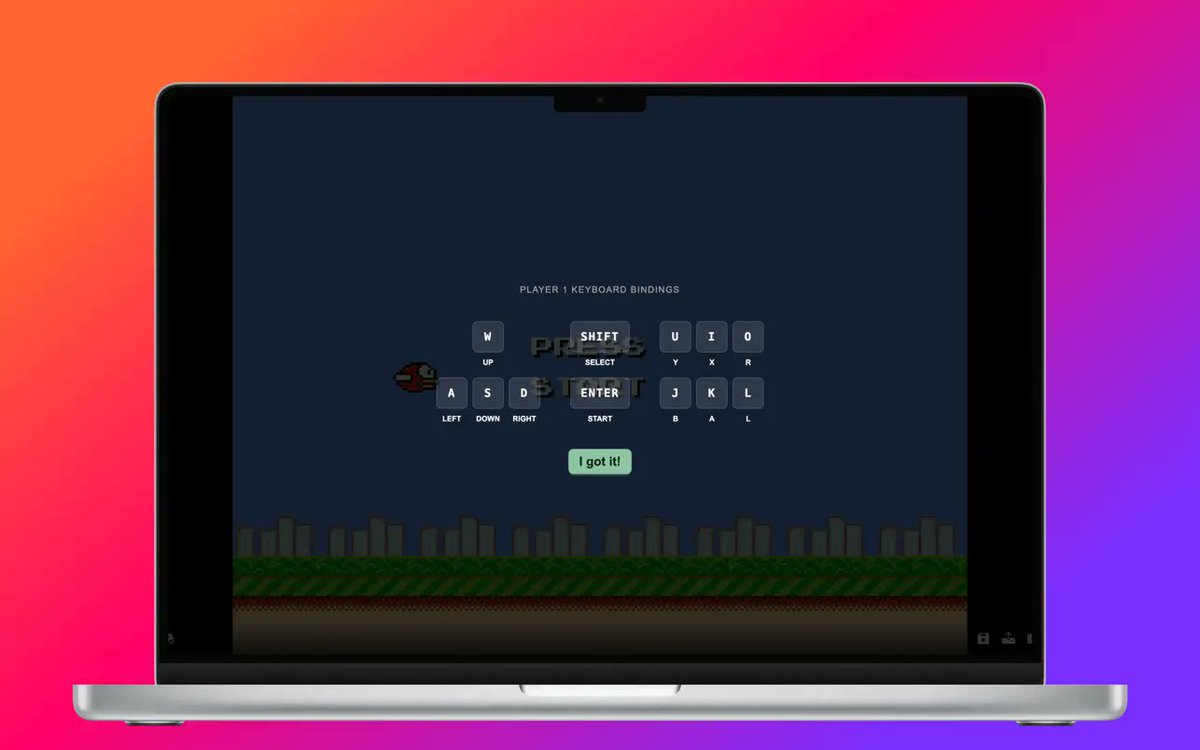
A browser ROM emulator recreates the behavior of an older game system using web technologies. Instead of downloading and configuring a separate desktop emulator, you open a web page and select a compatible game file from your device.
The browser then loads the required player and runs the game inside the page. Depending on the system and browser, you may be able to use:
- A keyboard
- On-screen touch controls
- A compatible USB or Bluetooth gamepad
- Fullscreen mode
- Save states or the game's built-in save system
- Screenshots and short gameplay recordings
Compatibility still varies. Older systems such as NES, Game Boy, and Game Boy Advance are usually easier to emulate than later systems with more demanding graphics and memory requirements. Performance also depends on your device, browser, and the quality of the game file.
What You Need Before You Start
You only need a few things:
- A modern browser on a desktop, laptop, tablet, or phone.
- A game file in a format supported by the player.
- A file that you have the right to use, such as a backup you created from a game you own.
- Enough available memory and processing power for the selected platform.
This guide does not provide ROM downloads. Copyright rules differ by country and by game, so use only files that you are legally permitted to possess and play.
How to Play a ROM Online in Your Browser
Step 1: Choose a Game File
Use the file-selection area on this page. You can either click it to browse your device or drag a game file directly onto the page.
Step 2: Choose a Compatible File
Select one game file from your device. The browser checks the filename and file structure to determine which player and emulation core should be used.
For the best result:
- Keep the correct file extension.
- Do not rename one file type to another extension.
- Use a complete, unmodified game backup when possible.
- For disc-based games, make sure the file is packaged in a format the player supports.
- For DOS bundles, keep the expected configuration files inside the archive.
Step 3: Wait for the Player to Load
The first launch may take longer because the browser needs to load the emulator runtime. Later launches may be faster if the browser has cached those assets.
Large games can also take longer to inspect and initialize. Keep the page open while the player is preparing the file.
Step 4: Configure Your Controls

Once the game starts, try the default keyboard controls or open the control settings to review the current bindings. If you are using a gamepad, connect it before configuring buttons and press a button so the browser can detect it.
On phones and tablets, supported players can display touch controls. Rotating the device to landscape mode often provides more room for both the game and the virtual controller.
Step 5: Protect Your Progress
Save behavior depends on the platform and player. Some games use their original in-game save system, while supported emulator cores may also expose save-state controls.
Do not assume that browser data will remain forever. Private browsing, cleared site data, storage limits, or switching devices can remove locally stored progress. If the player offers an export or download option for a save, keep a separate backup of anything important.
Supported Game File Formats
The browser player supports multiple console, handheld, computer, and browser-game formats. The table below lists the main file types currently recognized by the local player.
System or content typeCommon supported extensionsNES / Famicom.nesFamicom Disk System.fdsGame Boy.gbGame Boy Color.gbcGame Boy Advance.gbaSuper Nintendo / Super Famicom.sfc, .smcNintendo DS.ndsNintendo 64.n64Virtual Boy.vbSega Genesis / Mega Drive.sega, .mdSega Master System.smsSega Game Gear.ggSega 32X.32xSega CD.scdPC Engine.pcePlayStation 1.7zPlayStation Portable.isoNeo Geo Pocket / Color.ngp, .ngcWonderSwan / Color.ws, .wscAtari Jaguar.j64Flash games.swfJava mobile games.jarDOS bundles.jsdos, compatible .zip packagesArcade or packaged game archivescompatible .zip files
A recognized extension does not guarantee that every game will run perfectly. Regional variants, unusual cartridge hardware, missing disc data, encrypted files, damaged archives, and emulator-core limitations can all affect compatibility.
How Local File Handling Works
The phrase "upload a ROM" is commonly used for browser emulators, but the player on this page handles the selected game file locally in the browser. The page creates a temporary browser URL for the file and passes it to the selected player instead of sending it through a conventional file-upload form.
This has two practical benefits:
- You do not have to wait for a large game file to be transferred to a game-storage server before starting.
- The original game file remains associated with the current browser session and device.
The emulator runtime itself may still need to load scripts, WebAssembly modules, interface assets, or required system files from the website. Local file handling therefore does not mean the player works completely offline, and normal website requests still occur while the page is in use.
When you close the player or choose a different file, the temporary browser reference can be released. If you refresh the page, your browser may ask you to select the local game file again.
Can You Play ROMs on a Phone or Tablet?
Many older platforms can work in a modern mobile browser, especially systems designed around simple directional and button input. However, mobile compatibility depends on several factors:
- Available memory
- Browser support
- Touch-control support for the selected player
- Screen size and orientation
- The performance required by the emulated system
- Whether the browser suspends demanding pages in the background
If a game runs slowly on mobile, close other tabs, switch to landscape mode, disable battery-saving restrictions for the browser, and try a less demanding platform. For large disc images or later systems, a desktop or laptop will usually provide a more stable experience.
How to Use a Gamepad
The player supports browser gamepad input for compatible systems and browsers.
To connect one:
- Pair the controller with your device or connect it by USB.
- Open the browser player and start the game.
- Press a button so the browser detects the controller.
- Open the control settings.
- Review or remap the buttons for Player 1.
If nothing happens, click once inside the player before pressing a controller button. Browsers sometimes require direct interaction with the page before accepting gamepad, audio, or fullscreen input.
Common Problems and Fixes
The File Is Not Recognized
Check the extension against the supported-format table. Renaming an unsupported file to .gba, .nds, or another recognized extension will not convert it.
If the file was extracted from an archive, make sure you selected the actual game file rather than a text document, image, patch, or metadata file.
A ZIP File Does Not Start
ZIP files are not all interchangeable. A DOS package needs the expected DOS configuration and executable files. Arcade archives may need to remain intact because the emulator can depend on the internal filenames and archive structure.
Do not automatically extract an arcade ZIP unless you know the selected emulator expects an extracted file. Conversely, a random collection of files placed into a new ZIP is unlikely to become a valid game package.
The Game Loads but the Screen Is Black
Wait a little longer on the first launch. If the screen remains black:
- Refresh the page and select the file again.
- Confirm that the file is complete and not corrupted.
- Try a current version of Chrome, Edge, Firefox, or Safari.
- Disable aggressive content blockers for the player page.
- Test the file on a desktop device with more memory.
Some games require hardware features, BIOS data, or emulator behavior that may not be available for that specific title.
There Is No Sound
Click or tap inside the player. Browsers often block audio until the user interacts with the page.
Also check the player mute control, system volume, Bluetooth audio output, and whether another tab is using exclusive audio resources.
The Game Runs Too Fast or Too Slowly
First close other demanding tabs and applications. Disable battery-saving mode, connect the device to power, and avoid running the browser in the background.
For DOS games, speed can also depend on the cycles configured inside the package. A game prepared for a much faster or slower virtual CPU may need a corrected DOS configuration.
Keyboard Controls Do Not Respond
Click inside the game area to give it focus. Then review the control bindings and check whether the browser or operating system is intercepting the same shortcut.
Avoid browser shortcuts such as refresh, search, or tab switching when assigning game controls.
The Gamepad Is Connected but Does Not Work
Press a button after the player opens, then check the gamepad section in the control settings. If the controller still does not appear:
- Reconnect it before refreshing the page.
- Close other tabs or apps that may be reading the controller.
- Test a wired connection.
- Try another browser.
- Remap the controls manually.
A PSP Game Asks You to Select the File Again
Some demanding players require a browser security mode known as cross-origin isolation. Enabling that mode can reload the page, which removes the temporary reference to your local file. Select the PSP file again after the reload to continue.
Frequently Asked Questions
Can I play a ROM without installing an emulator?
Yes. A browser-based emulator loads the required runtime inside the web page, so you do not need to install a standalone emulator application. You still need a compatible game file and an internet connection to load the player assets.
Can I play a GBA ROM in Chrome?
Yes. Select a valid .gba file using the file selector on this page. Performance depends on the device and the specific game, but Game Boy Advance is supported by the local player.
Can I play Nintendo DS games in a browser?
The browser player recognizes .nds files and can load them through a Nintendo DS emulator. DS emulation is more demanding than many 8-bit and 16-bit systems, so newer devices usually provide better results.
Are my game files stored online?
In the current local-player workflow, the selected file is registered locally in the browser and passed to the player through a temporary browser URL. It is not sent through a conventional game-file upload form. Reloading or closing the page may require you to select the file again.
Can I save my game?
Save support depends on the platform, emulator core, and game. Use the original in-game save system when available, and use save-state or export controls when the player provides them. Keep an external backup of important saves whenever possible.
Can I use cheats, patches, or ROM hacks?
Compatibility varies. A patched or modified game may work if it still produces a valid file for a supported platform, but the browser player cannot guarantee compatibility with every patch, hack, translation, or custom cartridge mapper.
Is it legal to play ROMs in a browser?
Emulation technology and the rights to game content are separate issues. Laws and permitted backup practices vary by country. Use only game files that you have the legal right to possess and play. This guide is general information, not legal advice.
Do browser emulators work offline?
Not necessarily. Even when the game file is handled locally, the page may need to download emulator scripts, WebAssembly modules, BIOS resources, fonts, or interface assets. After those resources are cached, some parts may load faster, but offline behavior is not guaranteed.
Play Now:
Start Playing Your Own Game File
Browser emulation removes much of the setup that once made retro gaming difficult. You do not need to install several emulator applications, configure a different program for every console, or move files into special desktop folders.
Choose a game file you have the right to use, select it with the file picker on this page, and start it directly in your browser.
留言
載入中
還沒有評論。成為第一個說點什麼的人吧。